| LOGIN |
|
cpanel |
| ARCHIVE |
| directory |
| PROLIANT ML350 G6 |
| directory |
| BUTTANS |
            |
| Saturday.07.November.2026 02:19 | boxy | fixed |
|
some extremely lazy bullshit finally pissed me off enough to fix instead of looking at it being broken forever - all buttans 88x31px - webm vid player generates thumbnails again - webm vid player works on archives too website is still maximum retarded |
| Saturday.07.November.2026 00:50 | boxy | huehuehue |
|
• 04004860224DEC000 (23.3 GiB) • github.com/NotRexed/Hookshot |
| Thursday.05.November.2026 03:29 | boxy | only nikita can kill tarkov |
|
|
| Tuesday.03.November.2026 17:59 | boxy | oh yeah |
|
halloweeny came and went
|
| Wednesday.21.October.2026 13:57 | boxy | RIP BIOWARE (LOL) |
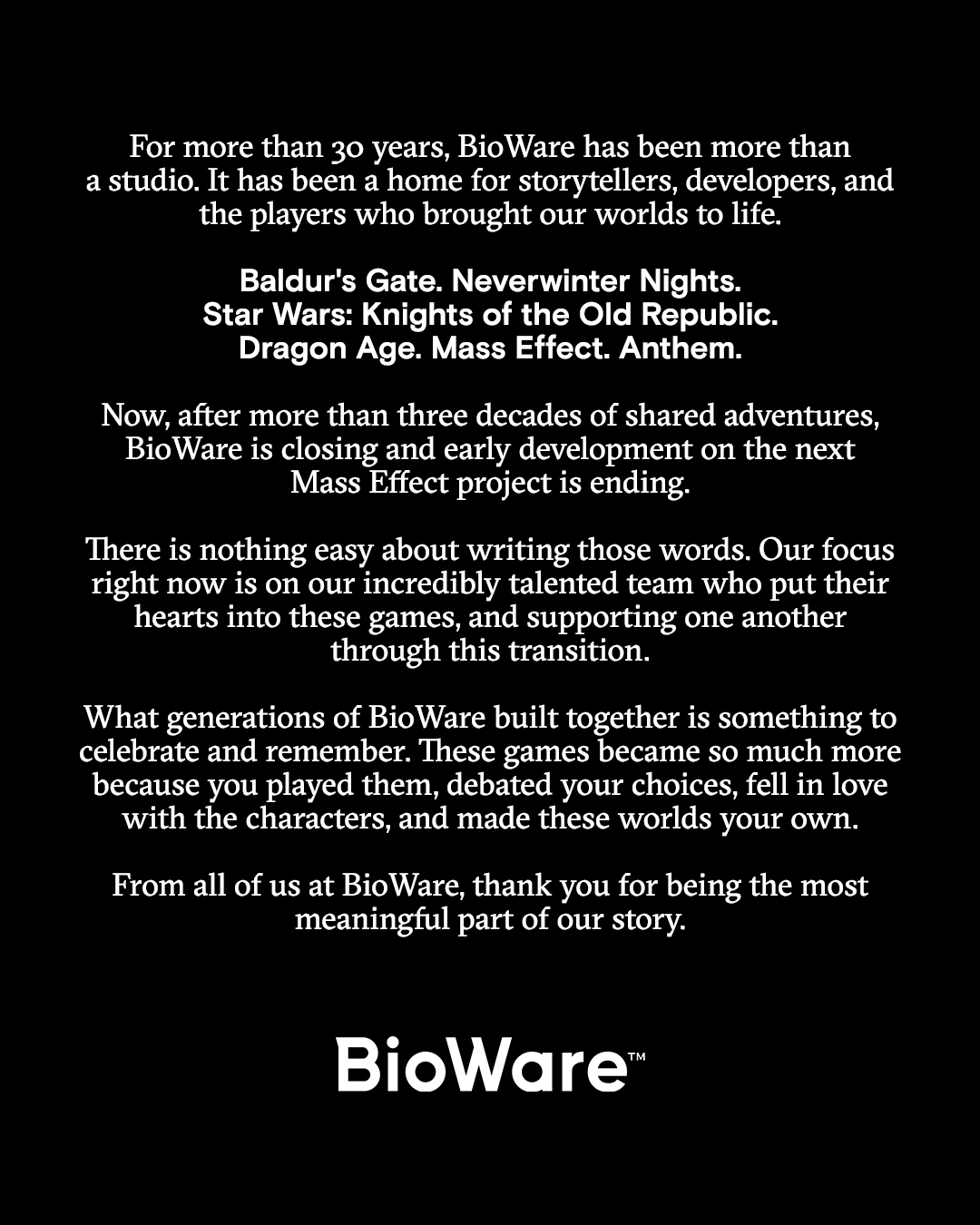 • x.com/bioware/status/2112953618093535510 the last good bioware game was dragon age 2 or sw:tor or mass effect 3. anthem was knee-capped before it ever left the ground. |
| Wednesday.21.October.2026 10:41 | boxy | CVE-2026-109618/619 |
|
>PHP2shell laughs in perl |
| Wednesday.21.October.2026 05:51 | soc | Alive I Am |
Holy fark, past few months have been... busy. Wasn't until recently in the last few weeks I had some time to just no life the fuck outta a few games, feels good man.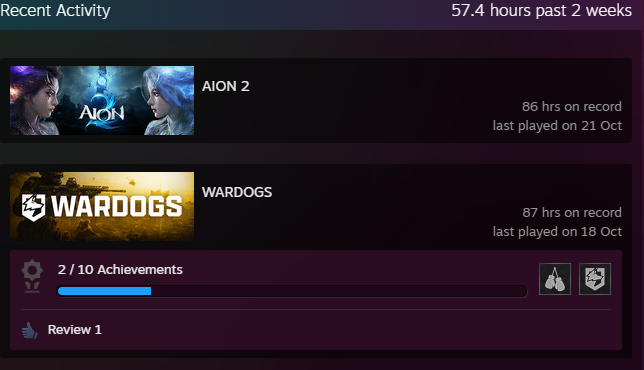 |
| Sunday.11.October.2026 15:31 | boxy | hard agree with everything here |
|
|

MAN v24.21.11
[written solely in notepad]
| CORNDOG ACCESSORIES |

|
| OTHER CRAP |
|
pc gaming wiki escape from tarkov tarkov adviser (new!) tarkov-changes EFT subreddit EFT wiki tarkov-market tarkov.dev tarkovtracker eft-ammo map genie reemr 3d maps destiny 2 DIM last wish plates d2 armor picker engram.blue todayindestiny d2 checkpoint bots (new!) diablo 2 icy-veins guides project zomboid interactive map pz wiki |